
How do I connect my ThinkCapital account to TradingView on the web?
You connect a ThinkCapital account to TradingView on the web through the ThinkMarkets broker in TradingView's Trading Panel. Log in to TradingView, open the Trading Panel at the bottom of the screen and select ThinkMarkets. Click Connect, then enter the ThinkCapital credentials emailed to you. ThinkCapital accounts run on the ThinkMarkets app.
A video tutorial on this page walks through the process step by step.
Step 1: Once you have your ThinkCapital credentials, log in to TradingView (or create a free account).
Step 2: Click the Trading Panel tab at the bottom of the screen and select the ThinkMarkets broker.
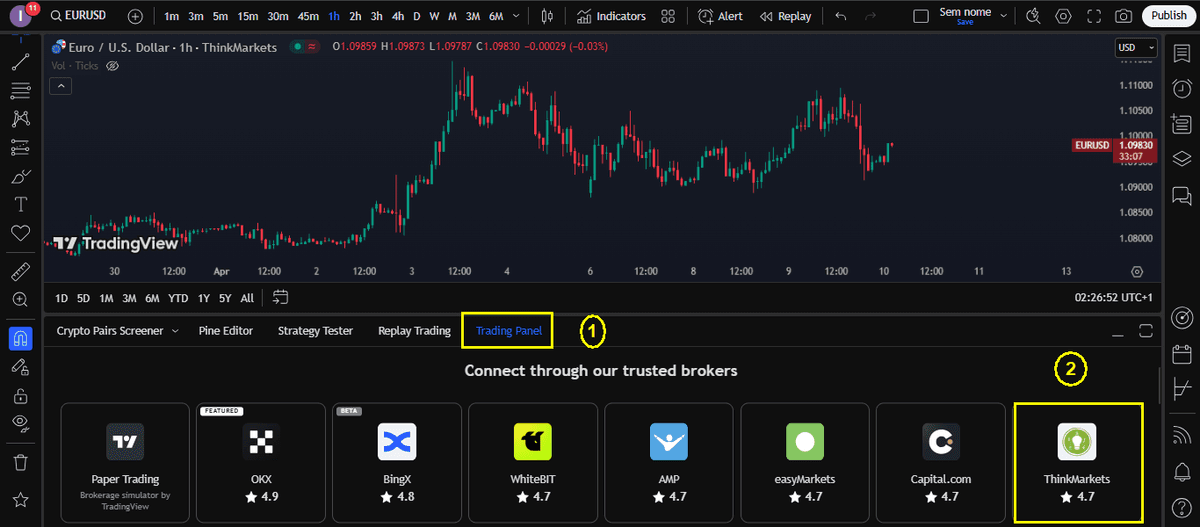
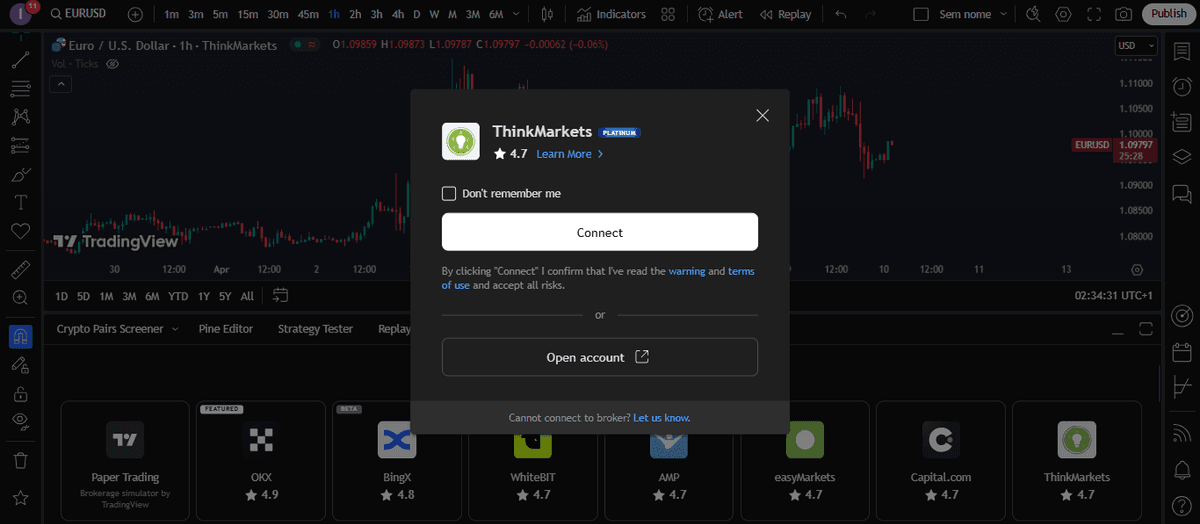
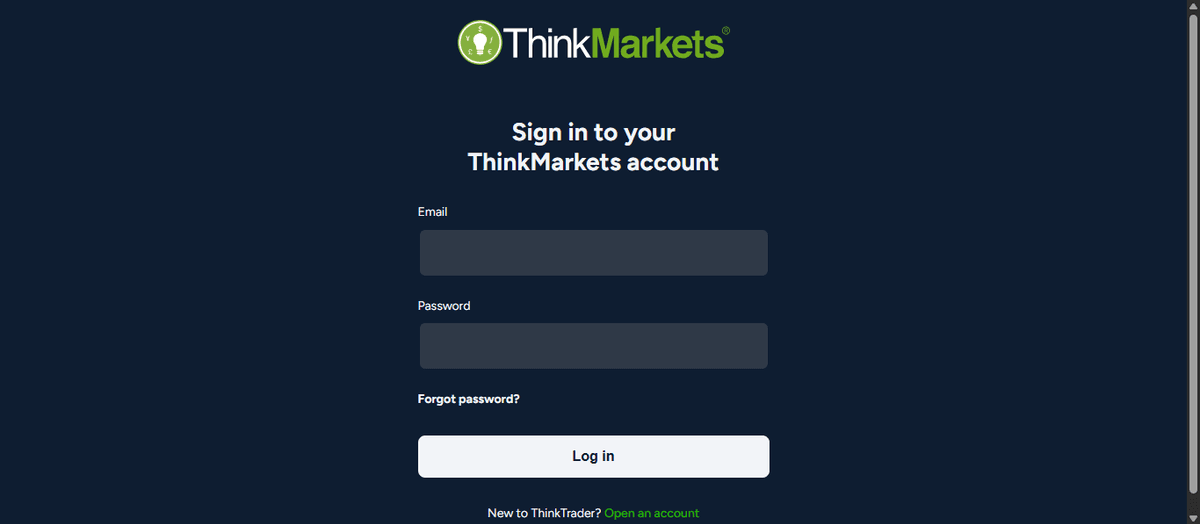
Step 3: Click Connect and enter your ThinkCapital credentials in the pop-up.
How do I connect my ThinkCapital account to the TradingView mobile app?
You connect a ThinkCapital account to the TradingView mobile app through the ThinkMarkets broker. First, add an instrument from the ThinkMarkets broker to your watchlist, open it and tap Buy. Then select ThinkMarkets, tap Connect and log in with the ThinkCapital credentials you received by email. If the app asks you to choose a Demo or Live account, select Demo.
1. Open the TradingView app, search for an instrument (for example, XAUUSD), choose the ThinkMarkets broker and add it to your watchlist.
2. Open your watchlist and tap the instrument you added.
3. On the instrument page, tap Buy.
4. Select ThinkMarkets from the list of brokers.
5. Tap Connect.
6. Log in with your ThinkCapital credentials from your email. If asked, choose Demo.
Related links
Was this article helpful?
Still need help?
Contact our support team. Email inquiries are accepted 24 hours a day. Replies are sent during business hours.